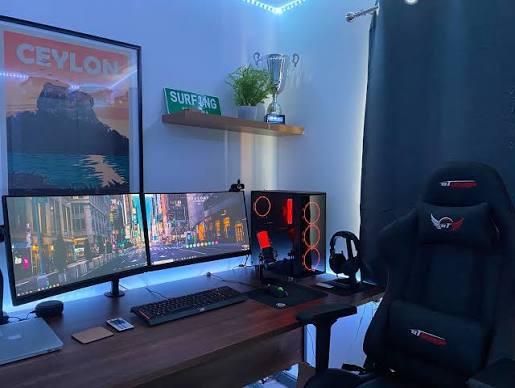
Expanding your workspace with a second monitor is one of the single most effective ways to boost your daily productivity. Whether you want to reference documents while writing, monitor communication apps while coding, or simply enjoy an immersive gaming and multitasking setup, connecting and configuring dual monitors on Windows is straightforward.
In this comprehensive guide, we will walk you through every step required to physically connect your displays and configure them properly using native Windows settings.
1. Physical Setup: Cables and Ports
Before touching any software settings, you need to ensure your physical hardware is connected correctly.
Steps to connect your displays:
Locate the available video output ports on your computer’s graphics card (GPU) or laptop motherboard. Common ports include HDMI, DisplayPort (DP), and sometimes USB-C / Thunderbolt.
Connect one end of your video cable to your primary monitor and the other to your computer.
Connect your second monitor using an appropriate cable to a second available port on your computer.
Important Tip: Always plug both monitors directly into your dedicated graphics card (if your PC has one) rather than splitting a single port or mixing motherboard and GPU ports, to ensure maximum performance and stability.
Turn on both monitors and your computer.
2. Configuring Display Modes in Windows
Once both screens light up, Windows will usually default to either duplicating what is on your screen or extending the desktop. To get the most out of a dual-monitor setup, you will want to extend your desktop.
Steps to choose your display mode:
Press Windows Logo Key + P simultaneously on your keyboard.
A flyout menu will appear on the right side of your screen with several options:
PC screen only / Disconnect: Only uses your primary monitor.
Duplicate: Shows the exact same image on both screens (useful for presentations).
Extend: Spans your desktop across both screens, treating them as one large continuous workspace. (This is the option you want for dual monitors).
Second screen only: Turns off your primary display and uses only the external monitor.
Click on Extend.
3. Arranging Display Layouts and Positions
If your mouse cursor feels like it’s drifting off to the wrong side when you move it between screens, you need to rearrange the virtual layout so it matches your physical desk setup.
Steps to arrange your monitors:
Right-click any empty space on your desktop and select Display settings.
At the top of the settings page, you will see a visual representation of your monitors represented by numbered rectangles (usually 1 and 2).
Click the Identify button to briefly flash numbers on your physical screens so you know which box corresponds to which physical monitor.
Click and drag the rectangles around with your mouse in the settings window so their physical arrangement matches your desk. For example, if monitor 2 is physically sitting to the left of monitor 1, drag rectangle 2 to the left of rectangle 1.
Click Apply to save your layout.
4. Setting Your Main Display
By default, Windows assigns your primary monitor as the screen that holds the main taskbar, system tray, and where new application windows open first.
Steps to designate your main display:
In Display settings, click on the rectangle representing the monitor you want to use as your primary screen (e.g., monitor 1).
Scroll down and click to expand the Multiple displays section.
Check the box that says “Make this my main display”.
Your taskbar and main application focus will instantly shift to that monitor.