Physical Address
304 North Cardinal St.
Dorchester Center, MA 02124
Physical Address
304 North Cardinal St.
Dorchester Center, MA 02124

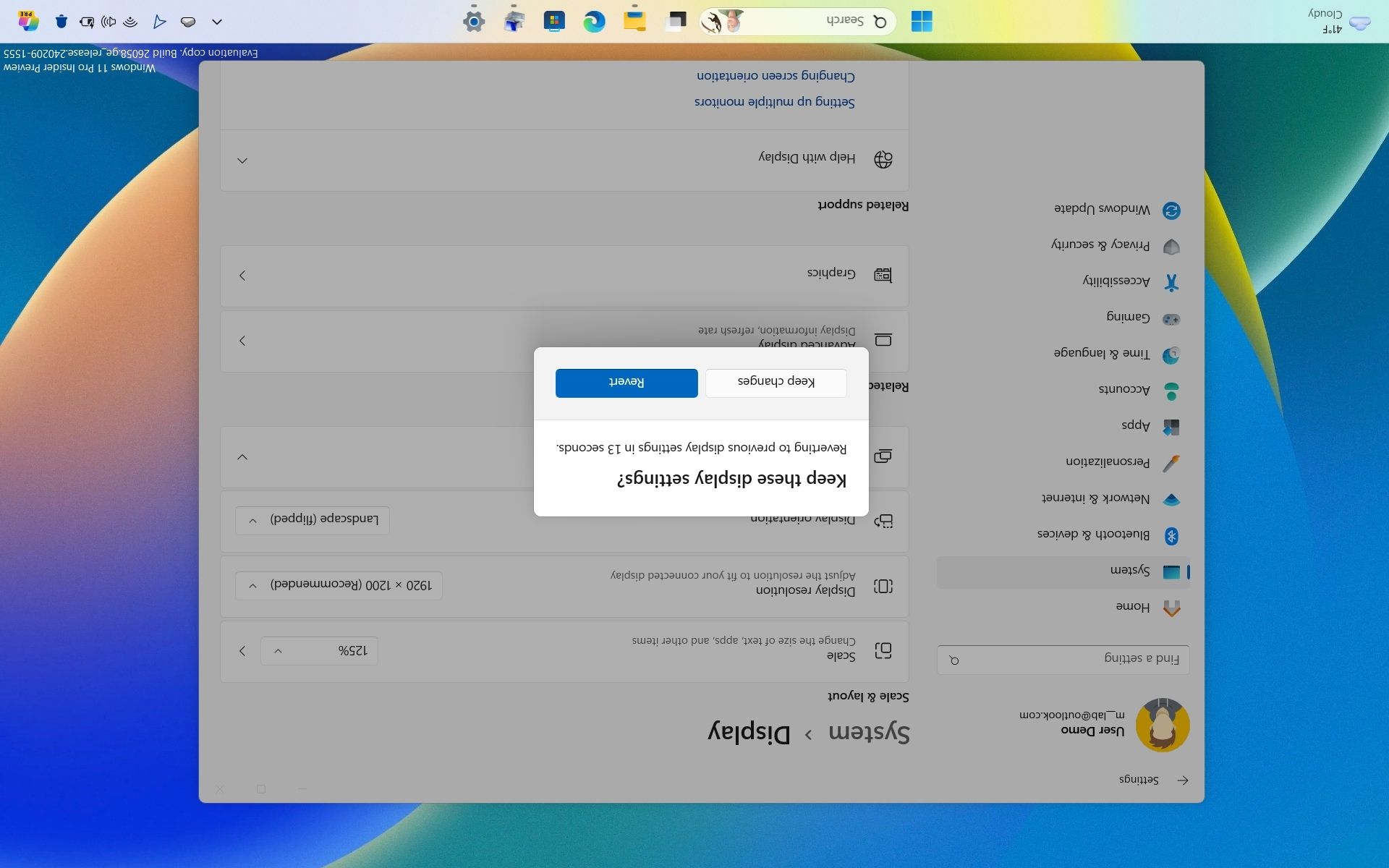
Sometimes your computer display can accidentally flip upside down or sideways due to a stray keystroke, a faulty driver update, or a glitch when connecting an external monitor. Alternatively, you might want to manually rotate your monitor into portrait mode for reading long documents, coding, or managing specific workspace setups.
In this comprehensive guide, we will walk you through every reliable method to rotate your screen on modern Windows operating systems, ranging from quick keyboard shortcuts to standard display settings.
The absolute quickest way to rotate your screen on many Windows laptops and desktops is by using a combination of function and arrow keys.
Note: This feature depends heavily on your graphics card driver (specifically Intel integrated graphics). If these shortcuts do not work on your machine, skip to Method 2.
Press and hold the following keys simultaneously:
Ctrl + Alt + Down Arrow: Flips your display upside down (180 degrees).Ctrl + Alt + Left Arrow: Rotates your display 90 degrees to the left (Portrait mode).Ctrl + Alt + Right Arrow: Rotates your display 90 degrees to the right.Ctrl + Alt + Up Arrow: Returns your screen back to the standard landscape orientation.If the keyboard shortcuts are disabled or unsupported on your hardware, the most reliable and foolproof method is through the main Windows Settings menu.
If you are using a dedicated graphics card or a specific manufacturer utility, display rotation can also be managed directly from your graphics control software.
| Method | Key Combination / Navigation | Best Used For |
| Keyboard Shortcuts | Ctrl + Alt + Arrow Keys | Instant, emergency fixes when the screen is accidentally flipped |
| Display Settings | Right-click Desktop > Display settings > Orientation | Permanent, reliable adjustments via the system menu |
| Graphics Control Panel | Manufacturer app (Intel/NVIDIA/AMD) > Display | Advanced multi-monitor and hardware-level layouts |
By mastering these simple methods, you can easily fix an inverted display or reconfigure your workspace orientation in seconds.




