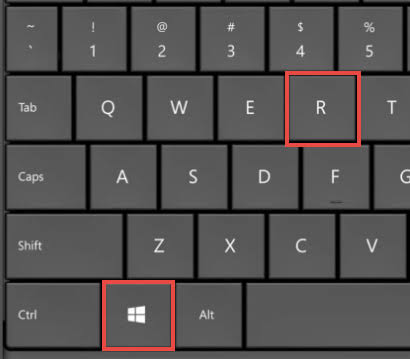
The Command Prompt is a powerful built-in utility in Windows that allows you to interact with your operating system using text-based commands. Whether you are running network diagnostics, executing administrative scripts, fixing corrupted system files, or managing disks, knowing how to quickly open the Command Prompt is an essential skill for any computer user.
In this comprehensive guide, we will walk you through every reliable method to open the Command Prompt on modern Windows operating systems, including standard user mode and elevated administrator mode.
1. What is the Command Prompt?
The Command Prompt (often abbreviated as cmd) is an interpreter application available in Windows. While most modern tasks are handled through graphical user interfaces (menus and windows), the Command Prompt gives you direct access to low-level system controls.
Standard Mode: Opens with regular user privileges. Suitable for most general queries and basic file management.
Administrator Mode: Opens with full system privileges. Required when you are running commands that modify system files, change network configurations, or install deep system utilities.
2. Method 1: The Quick Start Menu Shortcut (Easiest Method)
This is the fastest and most convenient way to access the Command Prompt if your mouse and keyboard are fully functional.
Steps to open via the Quick Link menu:
Press Windows Logo Key + X simultaneously on your keyboard (or right-click directly on the Start button in the taskbar).
A hidden power user menu will pop up from the bottom-left corner of your screen.
Click on Terminal or Command Prompt from the list. (Note: On newer versions of Windows 11, this may open Windows Terminal by default, which runs Command Prompt as a tab).
3. Method 2: The Search Bar Method (Best for Direct Access)
If you prefer using Windows Search to find and launch system apps instantly:
Steps to open via Search:
Click on the Start menu or press the Windows Logo Key + S to open the search bar.
Type cmd or Command Prompt into the text field.
The best match will display the classic Command Prompt application icon.
To open normally: Simply click the app icon or press Enter.
To open as Administrator: Look to the right side of the search pane and click Run as administrator.
4. Method 3: The Run Dialog Box Method (Fastest Keyboard Shortcut)
If you like bypassing desktop icons entirely and using direct keyboard shortcuts, the Run dialog box is extremely efficient.
Steps to open via Run:
Press Windows Logo Key + R simultaneously to open the small “Run” dialog box in the bottom-left corner.
Type cmd into the open field.
To open normally: Press Enter or click OK.
To open as Administrator: Press and hold Ctrl + Shift on your keyboard, then press Enter (or click OK). A User Account Control (UAC) prompt will appear asking for permission; click Yes.
5. Method 4: Directly from File Explorer (Opening in a Specific Folder)
Normally, when you open the Command Prompt, it defaults to your user profile folder (C:\Users\YourUsername). If you want the Command Prompt to open already pointed at a specific folder on your hard drive, you can launch it directly from File Explorer.
Steps to open from a folder:
Open File Explorer and navigate to the folder where you want your command line to start.
Click once on the address bar at the top of the window (where the folder path is displayed) so the text highlights.
Type cmd directly into the address bar, replacing the current path text.
Press Enter. A new Command Prompt window will instantly open, pre-configured to that exact folder path.
6. Method 5: Through Task Manager (Emergency Method)
If your Windows desktop explorer interface is frozen or glitching out, you can launch tasks directly through the Task Manager.
Steps to open via Task Manager:
Press Ctrl + Shift + Esc to open the Task Manager.
Click on the Run new task button located at the top of the window (or in the File menu depending on your Windows version).
A small window will appear. Type cmd into the input field.
(Optional) Check the box that says “Create this task with administrative privileges” if you need admin rights.
Click OK or press Enter.
Summary Cheat Sheet
Method
Keyboard Shortcut / Action
Best Used For
Quick Link Menu
Win + X > Select Terminal/Command Prompt
Fast access from the taskbar
Search Bar
Type cmd in Start search
Standard day-to-day launching
Run Dialog
Win + R > type cmd
Quick keyboard-driven workflow
File Explorer Address Bar
Type cmd in folder path bar
Opening inside a specific folder instantly
Task Manager
Ctrl + Shift + Esc > Run new task
Troubleshooting when desktop UI freezes
By mastering these different methods, you can quickly open the Command Prompt in either standard or administrator mode whenever your technical tasks require it.