Physical Address
304 North Cardinal St.
Dorchester Center, MA 02124
Physical Address
304 North Cardinal St.
Dorchester Center, MA 02124

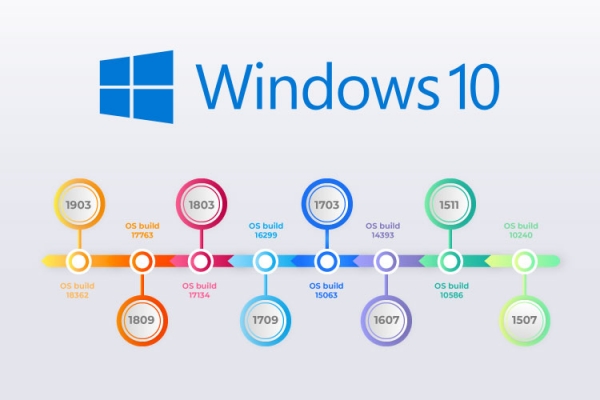
Whether you are troubleshooting a technical issue, downloading a new software application, or making sure your operating system is up to date, knowing your exact Windows version and build number is an essential piece of information. Microsoft regularly rolls out major updates, and knowing whether you are running Windows 10 or Windows 11 (along with the specific edition) helps ensure maximum compatibility.
In this comprehensive guide, we will walk you through every reliable method to check your Windows version quickly and accurately.
Win + Pause or Settings)The cleanest and most detailed way to check your system specs is through the modern Windows Settings app.
winver CommandIf you want a quick pop-up window that displays your exact build version without digging through menu layers, the built-in Windows Version utility is the most efficient choice.
winver:If you are already working inside a terminal window or writing diagnostic scripts, you can pull your operating system version directly using text commands.
Win + R, type cmd, and press Enter).systeminfo| Method | Keyboard Shortcut / Action | Best Used For |
| Settings App | Win + I > System > About | General system checks and viewing complete specifications |
| Winver Command | Win + R > type winver | Quick, clean pop-up showing exact build numbers |
| Command Prompt | Open cmd > type systeminfo | Advanced troubleshooting and script automation |
By mastering these simple methods, you can instantly identify your Windows version whenever a software requirement or technical guide calls for it.




