How to Adjust Screen Brightness on Windows: The Ultimate Step-by-Step Guide

Having your screen set to the wrong brightness level can cause severe eye strain in a dark room or leave you squinting at a washed-out display under bright office lights. Whether you want to quickly dim your monitor to save battery life on a laptop or fine-tune your visual comfort during a long work session, knowing how to adjust your screen brightness on Windows is an essential daily skill.

In this comprehensive guide, we will walk you through every reliable method to change your display brightness on modern Windows operating systems.

1. The Fastest Method: The Quick Settings Panel (Laptop Users)

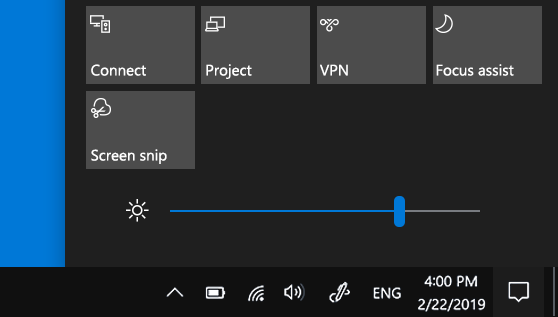
If you are using a laptop with a built-in display, the absolute fastest way to adjust brightness is through the Windows Quick Settings menu.

Steps to adjust via Quick Settings:

  1. Press Windows Logo Key + A simultaneously on your keyboard (or click directly on the network/sound/battery icons area in the bottom-right corner of your taskbar).
  2. A flyout menu will appear containing your system shortcuts and sliders.
  3. Locate the Brightness slider (represented by a sun icon).
  4. Click and drag the slider to the left to decrease brightness or to the right to increase it.

2. The Direct Keyboard Shortcut Method (Laptop Users)

Most modern laptops include dedicated hardware function keys specifically designed for changing display brightness instantly.

Steps to use function keys:

  1. Look at the top row of your keyboard (the F1 through F12 keys) or your arrow keys for icons depicting a small sun or light rays.
  2. Press the designated brightness down or brightness up keys.
  3. Note: On some keyboards, you may need to hold down the Fn key while pressing the brightness key if your function keys are locked to media or system controls.

3. The Standard Method: Windows Display Settings

If you are using a desktop computer with an external monitor, or if your laptop lacks dedicated brightness shortcuts, you can adjust the levels directly through the Windows Settings app.

Steps to adjust via Settings:

  1. Press Windows Logo Key + I simultaneously to open Settings.
  2. Click on System in the left sidebar, then select Display on the right.
  3. Look at the top of the display menu for the Brightness section.
  4. Drag the slider left or right to set your preferred brightness level.
    • Note: If you are using an external desktop monitor, Windows software brightness sliders are sometimes disabled by default because external displays rely on their own physical built-in buttons (OSD menus) located directly on the monitor housing.

4. Alternative Method: Windows Mobility Center (Laptops)

If you are running Windows on a portable device and prefer a classic configuration panel:

Steps via Mobility Center:

  1. Press Windows Logo Key + X to open the quick link menu (or right-click the Start button).
  2. Click on Mobility Center from the list.
  3. Use the Display brightness slider widget to adjust your screen intensity instantly.

Summary Cheat Sheet

MethodKeyboard Shortcut / ActionBest Used For
Quick SettingsWin + A > Adjust brightness sliderFast slider-based adjustments on laptops
Function KeysDedicated F-keys or Fn + F-keysInstant, tactile adjustments without opening menus
Display SettingsWin + I > System > Display > BrightnessPermanent or fine-tuned software calibration
Mobility CenterWin + X > Mobility CenterClassic laptop power and display management

By mastering these simple methods, you can easily optimize your screen brightness for any lighting environment, protecting your eyes and improving your everyday viewing comfort.


Leave a Reply

Your email address will not be published. Required fields are marked *