Physical Address
304 North Cardinal St.
Dorchester Center, MA 02124
Physical Address
304 North Cardinal St.
Dorchester Center, MA 02124

Built-in Windows Tools
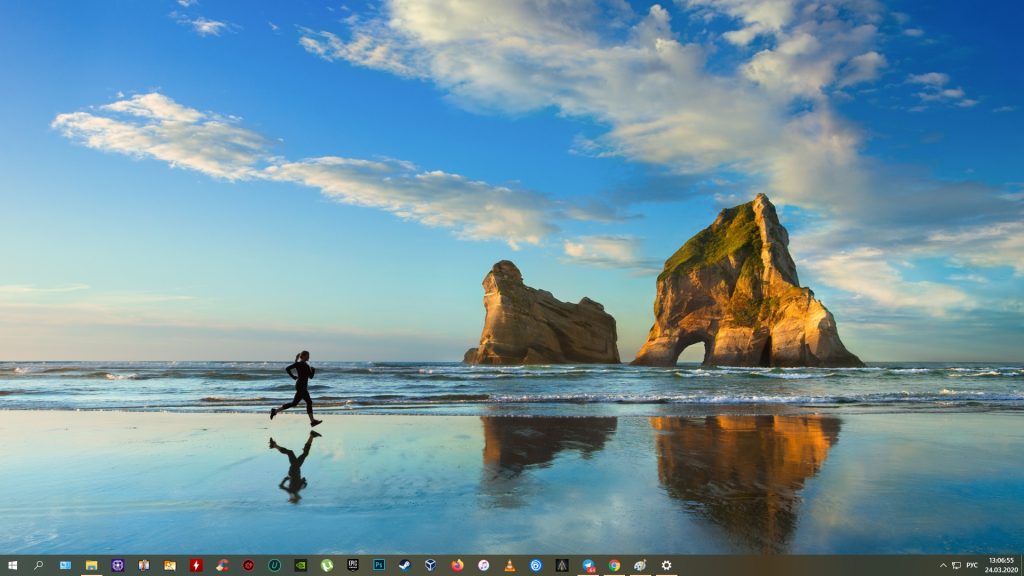
1. Win + PrtSc To instantly take a screenshot of the entire screen, use the key combination Win (with the flag) + PrtSc (Print Screen). The system will take a screenshot and immediately save it to the hard drive in PNG format. You can find the file at: “This PC” → “Pictures” → “Screenshots”.
2. PrtSc + Paint Press the PrtSc key. The system will not save the image to disk, but will copy it to the clipboard. To view the screenshot, launch Paint (or any graphics editor) and paste the image using Ctrl + V. After that, edit and save the file.
3. Alt + PrtSc This combination takes a snapshot of only the active window and copies it to the clipboard. Then paste the image into an editor (like in the previous method) using Ctrl + V to save it later.
4. “Snipping Tool” Program A built-in screenshot manager. Launch it via system search, click “Mode”, select the display area, and then click “New”. The program will open the snapshot in a new window, where you can annotate and save it.
5. “Snip & Sketch” Program Triggered by pressing Win + Shift + S or via system search. It allows you to take snapshots of a selected area, window, or the entire screen. After creation, the screenshot can be pasted into a graphics editor via Ctrl + V. In some Windows builds, it features a built-in editor.
Third-Party Software
Nimbus Capture: A browser extension. Convenient for web pages (capturing full-page length), it features editing and video recording tools.
PicPick: An editor similar to Paint, featuring screenshot capabilities (including scrolling capture). It supports multiple formats (PNG, JPG, BMP, PDF, GIF).
LightShot: A simple tool for quickly capturing a selected screen area. It allows you to add text, arrows, and instantly get a direct link to the image uploaded to the program’s server.