Physical Address
304 North Cardinal St.
Dorchester Center, MA 02124
Physical Address
304 North Cardinal St.
Dorchester Center, MA 02124

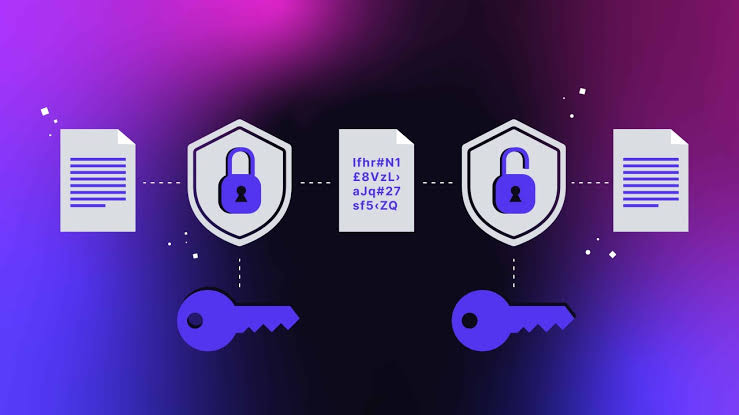
In an interconnected digital landscape where data breaches, ransom attacks, physical device thefts, and unauthorized surveillance are daily occurrences, basic password protection is no longer sufficient. Whether you are storing personal tax documents on a flash drive, maintaining confidential client records on a company Network Attached Storage (NAS), or sending system backups over the internet to a cloud provider, unencrypted data is a disaster waiting to happen.
If an unencrypted physical laptop or external storage drive is lost or stolen, anyone who plugs that drive into another computer can bypass operating system logins entirely and view, copy, or distribute every file stored on it. Similarly, if an unencrypted cloud storage account or backup repository is breached, your raw data becomes immediately accessible to malicious actors.
Encryption is the mathematical foundation of digital privacy and cybersecurity. It transforms readable plain text or raw binary data into an unreadable, garbled string of characters known as ciphertext. Without the corresponding cryptographic key or passphrase, decrypting this ciphertext back into its original state is mathematically impossible within any reasonable timeframe using modern computing power.
This comprehensive guide explores the mechanics of cryptography, compares symmetric and asymmetric encryption, details full-disk versus container-level encryption tools, and outlines best practices for securing local files and off-site backups using zero-knowledge architecture.
To effectively design an encrypted file and backup pipeline, you must understand the underlying algorithms and paradigms used by modern security software.
Cryptographic operations are broadly categorized into two fundamental mechanisms:
When configuring encryption tools for drives or backups, you will almost universally encounter AES (Advanced Encryption Standard), specifically AES-256.
When securing sensitive information and backups, you must defend against vulnerabilities in two completely different physical states:
┌────────────────────────────────────────────────────────────────────────┐
│                        THE DATA LIFECYCLE                              │
└────────────────────────────────────────────────────────────────────────┘

     DATA AT REST                        DATA IN TRANSIT
  ┌─────────────────┐                 ┌──────────────────┐
  │ Local Disk /    ├────────────────►│ Public Internet  ├────────────────┐
  │ Physical Backup │  TLS / HTTPS    │ Tunnel / Network │  AES-256 E2EE  │
  └────────┬────────┘                 └──────────────────┘                │
           │                                                              ▼
           ▼                                                     DATA AT REST
  ┌─────────────────┐                                         ┌──────────────────┐
  │  Encrypted by   │                                         │ Encrypted Remote │
  │ BitLocker/LUKS  │                                         │ Cloud Repository │
  └─────────────────┘                                         └──────────────────┘
Data at Rest refers to inactive data physically stored on a medium—such as a file sitting on an internal NVMe SSD, an external USB hard drive, or a NAS array.
Data in Transit refers to data actively moving across a network—such as a backup file being uploaded across the public internet to a remote cloud server, or transmitted over local Wi-Fi to a NAS.
If you upload a file to a cloud provider over a secure HTTPS connection, the data is encrypted in transit. However, if the cloud provider does not encrypt that file on their servers after receiving it, your data is completely unencrypted at rest on their data center drives. Comprehensive security requires protecting data in both states simultaneously.
Depending on your security goals and hardware layout, you must choose the appropriate structural layer for applying encryption.
Full-Disk Encryption operates at the physical or block storage layer beneath the operating system. It encrypts every single sector of the drive, including the operating system bootloader, system files, page files, temp caches, installed applications, and user data.
Instead of encrypting an entire physical drive, container-based tools create a single, massive file (a “container” or “vault”) on a drive. When opened using the software and a master password, this container mounts on the operating system like a virtual USB flash drive.
┌─────────────────────────────────────────────────────────────────┐
│ PHYSICAL STORAGE DRIVE (e.g., 1TB Unencrypted NTFS/exFAT)      │
│                                                                 │
│  ┌───────────────────────────────────────────────────────────┐  │
│  │ ENCRYPTED VAULT FILE (e.g., "secure_vault.hc" - 200GB)    │  │
│  │                                                           │  │
│  │   [Requires Password / Keyfile to Mount]                  │  │
│  │   Inside: Contains AES-256 Encrypted Private Files        │  │
│  └───────────────────────────────────────────────────────────┘  │
│                                                                 │
│  Unencrypted Area: General Games, Public Documents, OS Files    │
└─────────────────────────────────────────────────────────────────┘
When selecting cloud storage or an off-site automated backup repository, the most critical architectural requirement is Zero-Knowledge Encryption (also referred to as Trust-No-One architecture or Client-Side Encryption).
In traditional cloud models (like standard Google Drive or iCloud without Advanced Data Protection), the cloud vendor holds the master decryption keys on their servers. While the data is encrypted, the vendor has the technical ability to read your files, scan them for content, or hand the decrypted data over to legal entities upon receiving a subpoena.
┌─────────────────────────┐               ┌─────────────────────────┐
│     LOCAL COMPUTER      │               │   REMOTE CLOUD SERVER   │
│                         │               │                         │
│  Plaintext Backup Data  │               │   Encrypted Ciphertext  │
│           │             │               │    (Vendor Has ZERO     │
│           ▼             │               │    Decryption Keys)     │
│  [AES-256 Encryption]   │               │                         │
│           │             │               │   ┌─────────────────┐   │
│           ▼             │  TLS Tunnel   │   │ 010111001010001 │   │
│   Encrypted Blocks ─────┼──────────────►│   │ 110101001101011 │   │
│                         │               │   └─────────────────┘   │
└─────────────────────────┘               └─────────────────────────┘
Zero-knowledge encryption is a double-edged sword. Because the cloud provider does not hold your decryption key, there is no “I forgot my password” reset button. If you lose your master passphrase and destroy your offline recovery key, your backup data is mathematically permanently unrecoverable.
Deploying robust encryption algorithms is useless if your operational security (OpSec) around passwords and keys is weak. To prevent data lockouts and security breaches, follow these strict rules:
Never use short, predictable passwords for encrypted volumes or backup software. Utilize long passphrases consisting of four or more random words strung together (e.g., correct-horse-battery-staple), or generate 20+ character complex strings using a dedicated, offline password manager (like KeePassXC or Bitwarden).
When you enable BitLocker, FileVault, or set up a zero-knowledge backup tool, the system generates a long, alphanumeric Recovery Key.
For high-security workstations utilizing Full-Disk Encryption:
Even if a drive was encrypted, when decommissioning or selling old hard drives, never rely solely on standard OS formatting. Always run a dedicated disk-wiping tool (like shred in Linux or DBAN for HDDs) to perform a zero-fill pass across all physical sectors, or issue a cryptographic erasure command (Crypto-Erase / ATA Secure Erase) which instructs the drive’s controller to destroy its internal encryption keys, rendering all historical data permanently unreadable instantly.




