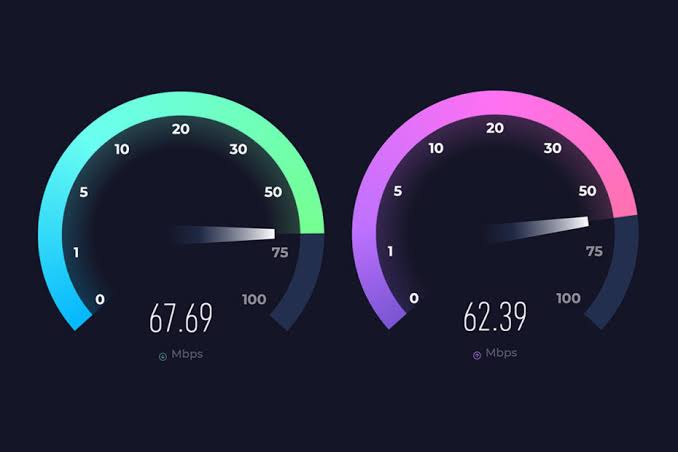
Bandwidth is the maximum theoretical amount of data your network can transmit in a given time, usually measured in Megabits per second (Mbps). However, having a “Gigabit plan” doesn’t mean your web pages will load instantly. Testing your network correctly ensures you are getting the speeds you pay for and helps identify hidden technical bottlenecks.
1. How to Test Accurately Without Skewing Results
Running a speed test on a 5-year-old smartphone while standing in the furthest room of your house will not give you an accurate picture of what your Internet Service Provider (ISP) is actually delivering to your home.
The Hardwired Requirement: For a precise measurement of your incoming line, you must run the test on a modern computer connected directly to the router (or directly to the modem) via a Gigabit Ethernet cable. Testing over Wi-Fi introduces too many environmental variables (distance, interference, device antenna limits) that mask the true speed of the ISP connection.
Isolating the Network: Ensure no other devices on your network are actively consuming data. If a family member is streaming 4K Netflix, or a background process is updating a massive video game while you test, the speed test will only report the remaining available bandwidth, not the total capacity.
Server Selection: By default, testing sites like Speedtest.net pick the geographically closest server. While this shows your best-case scenario, it is highly recommended to manually select a server in a different state or country to see how your ISP handles routing across long distances.
2. Understanding the Metrics: Beyond the Marketing
A comprehensive speed test gives you three primary metrics. Understanding how they interact is crucial for diagnosing a sluggish network.
Download Speed: How fast data is pulled from external servers to your local device. This is crucial for streaming high-definition video, loading complex web pages, and downloading large software files.
Upload Speed: How fast you can push data from your device out to the internet. While traditionally ignored by consumers, high upload speeds are now vital for remote work (video conferencing), live streaming to platforms like Twitch, and rapidly backing up thousands of photos to cloud storage.
Ping and Jitter (Latency): Ping is the reaction time of your connection, measured in milliseconds (ms). Jitter is the variation in that ping. If your ping is 20ms, but spikes to 150ms every few seconds (high jitter), you will experience severe lag and rubber-banding in online games and robotic audio during VoIP calls, even if your download speed is blazing fast.
Megabits vs. Megabytes: ISPs advertise in Megabits (Mbps), but web browsers download files in Megabytes (MB/s). There are 8 bits in a byte. If you have a 100 Mbps connection, your actual maximum file download speed is 12.5 MB/s.
3. Identifying Bottlenecks and Bufferbloat
If your tested speeds are consistently lower than your ISP plan, or if your connection feels sluggish despite good test results, you need to find the weak link.
Hardware Limitations: Check if your router or modem physically supports the speeds you pay for. An older DOCSIS 3.0 cable modem simply cannot process Gigabit speeds. Similarly, old network cards in cheap laptops are often capped at 100 Mbps.
The Bufferbloat Phenomenon: This is a hidden killer of network performance. Bufferbloat occurs when a router queues up too many data packets when the connection is saturated (e.g., someone is uploading a huge video). This queue causes massive latency spikes for everyone else on the network. You can test for this specifically using tools like the Waveform Bufferbloat Test.
QoS (Quality of Service): If you suffer from bufferbloat, you need to enable QoS in your router settings. Smart QoS algorithms (like SQM or fq_codel) manage the packet queue intelligently, ensuring that critical real-time traffic (like gaming or Zoom calls) instantly bypasses bulk downloads, keeping the network snappy even under 100% load.
IP Addresses & DNS Basics: How Devices Navigate the Internet Architecture
To communicate, every single device on a network needs a unique mathematical identifier, much like a global mailing address. Understanding the relationship between IP addresses (the underlying numbers) and DNS (the human-readable names) is fundamental to managing a secure, accessible, and functional network.
1. Public vs. Private IP Addresses
Your home network operates using two completely separate sets of addresses, separated by your router.
The Public IP (WAN): This is the single address assigned to your modem by your Internet Service Provider. It is the public face of your network; it is how the rest of the internet identifies your entire household. Every request made by any device in your house appears to the outside world as coming from this one single Public IP.
Private IPs (LAN): These are addresses generated internally by your router (usually following formats like 192.168.1.x, 10.0.0.x, or 172.16.x.x). These addresses are strictly for local communication between your phone, PC, and smart TV. The outside internet cannot see, ping, or access these private addresses directly.
Carrier-Grade NAT (CGNAT): Because the world has run out of traditional IPv4 addresses, many ISPs no longer give homes a dedicated Public IP. Instead, they put multiple customers behind a giant shared IP (CGNAT). If your ISP uses CGNAT, hosting servers or playing peer-to-peer games becomes incredibly difficult, as you cannot forward ports.
2. The Transition: IPv4 vs. IPv6
The internet is currently undergoing a massive, decades-long infrastructure upgrade.
IPv4: The classic format consisting of four numbers (e.g., 192.168.0.1). Because it only supports about 4.3 billion addresses, the world exhausted the supply years ago.
IPv6: The modern standard, featuring long alphanumeric strings separated by colons (e.g., 2001:0db8:85a3:0000:0000:8a2e:0370:7334). IPv6 provides so many addresses that every grain of sand on Earth could have its own IP. When fully adopted, IPv6 will eliminate the need for NAT entirely, giving every device a direct, routable public address while relying on strict firewalls for security.
3. Static vs. Dynamic Addresses and DHCP
By default, routers hand out IP addresses dynamically to save time, but for advanced setups, manual control is necessary.
DHCP (Dynamic Host Configuration Protocol): When a phone joins the Wi-Fi, the router’s DHCP server instantly “leases” it an available IP address. If the phone leaves the house and the lease expires, that IP is returned to the pool and might be assigned to a smart plug tomorrow.
IP Conflicts: If two devices accidentally claim the same IP address, neither will be able to connect to the internet. This usually happens if you manually set an IP on a PC that falls inside the router’s automatic DHCP pool.
Static IPs (DHCP Reservation): You can manually reserve a permanent IP for a specific device based on its hardware MAC address. This is critical for network printers, NAS drives, and smart home hubs. If your printer’s IP changes every week, your computer will constantly lose the connection to it.
4. The Role and Power of DNS
The Domain Name System (DNS) is the global phonebook of the internet, operating silently in the background of every click.
How it Works: Computers only process numerical IP addresses, but humans cannot memorize strings of numbers. When you type amazon.com into your browser, your computer queries a DNS server, which instantly translates that name into the correct IP address (e.g., 52.119.168.48) and directs your browser there.
Custom DNS Records: If you own a domain, you manage its DNS records. An A Record points a name to an IPv4 address. A CNAME points a subdomain (like www) to another name. A TXT record is used to verify domain ownership for email security (like SPF and DKIM).
Privacy and Alternate DNS: By default, you use your ISP’s DNS servers. ISPs often use this to track your browsing history and sell marketing data. Changing your router’s default DNS to a secure public provider (like Cloudflare’s 1.1.1.1 or Google’s 8.8.8.8) can speed up web browsing. Furthermore, utilizing protocols like DNS over HTTPS (DoH) encrypts these translation requests, completely blinding your ISP to which websites you are visiting.