Physical Address
304 North Cardinal St.
Dorchester Center, MA 02124
Physical Address
304 North Cardinal St.
Dorchester Center, MA 02124

In the pursuit of maximum computing performance, the traditional instinct has always been to push more power into the hardware. Overclocking—the art of increasing voltage and frequency to squeeze every last drop of performance from silicon—was the hallmark of the PC enthusiast for decades. However, modern hardware architectures have fundamentally inverted this paradigm.
Today’s flagship CPUs and GPUs from Intel, AMD, and NVIDIA are pushed to their absolute thermal and electrical limits straight out of the box. They are designed to aggressively boost their clock speeds until they slam into a thermal wall (often 95°C to 100°C), at which point they throttle back. Pushing more voltage into these chips yields virtually zero performance gain; it only results in excessive heat, jet-engine fan noise, and accelerated hardware degradation.
The modern enthusiast’s weapon of choice is no longer overclocking; it is Undervolting. Undervolting is the meticulous process of lowering the electrical voltage supplied to a processor while maintaining its factory clock speeds. When executed correctly, undervolting is the closest thing in computing to “free lunch”—drastically lowering temperatures and power consumption without sacrificing a single frame per second of performance.
This comprehensive guide decodes the physics of voltage, explains the concept of the “Silicon Lottery,” and provides a detailed architectural breakdown of how to properly undervolt both modern GPUs and CPUs.
To understand why undervolting works, you must first understand why hardware manufacturers intentionally over-volt their products at the factory.
When a silicon wafer is manufactured, the microscopic imperfections across the silicon vary wildly. If NVIDIA produces 10,000 RTX 4090 chips, no two chips are electrically identical.
This variance is known as the Silicon Lottery. Because NVIDIA and AMD cannot manually tune the voltage for millions of individual graphics cards, they apply a “blanket” voltage curve in the BIOS. They set the default voltage intentionally high—high enough to guarantee that even the absolute worst-quality chip off the assembly line will remain perfectly stable.
Consequently, if you won the Silicon Lottery and received a high-quality chip, your motherboard is currently force-feeding it vastly more voltage than it actually needs to function. Undervolting is simply the process of stripping away this excess factory voltage cushion to find your specific chip’s true electrical floor.
The relationship between voltage, clock speed, and heat is not linear; it is exponential.
The dynamic power consumption of a processor is calculated using the formula: $P = C \times V^2 \times f$
(Where P is Power, C is Capacitance, V is Voltage, and f is Frequency).
Because voltage is squared in the equation, a tiny reduction in voltage results in a massive reduction in total power draw and heat generation.
The Benefits of a Successful Undervolt:
Graphics cards are the prime candidates for undervolting because they consume the most power (often 300W to 450W). The universal tool for GPU undervolting, regardless of whether you own an NVIDIA or AMD card, is MSI Afterburner.
In MSI Afterburner, pressing CTRL + F opens the V/F Curve editor. This graph plots Voltage on the X-axis (in millivolts, mV) and Frequency on the Y-axis (in Megahertz, MHz).
The factory curve slopes upward: as the card tries to hit higher clock speeds, it demands higher voltages.
The goal is to find the maximum frequency your card reaches in games (e.g., 1900MHz), and force the card to hit that frequency at a much lower voltage (e.g., 875mV instead of the factory 1050mV).
CTRL + F). Find your target voltage on the bottom X-axis (start with 900mV).Once applied, watch your looping benchmark. If it crashes to the desktop or the screen goes black, your chip lost the Silicon Lottery; it needs more voltage to sustain 1900MHz. You must raise the voltage target to 925mV and try again. If it is stable, you can try lowering the voltage to 875mV. You repeat this until you find the absolute lowest voltage that survives a 2-hour gaming session without crashing.
CPU undervolting has become slightly more complex in recent years due to sophisticated internal boosting algorithms and security mitigations (like Plundervolt patches that locked voltage offsets on some Intel chips). However, both manufacturers offer elegant, modern solutions.
AMD’s modern Ryzen processors (Ryzen 5000, 7000, and 9000 series) use an advanced algorithmic boosting technology called Precision Boost Overdrive 2 (PBO2). You do not undervolt Ryzen using static, fixed voltages; doing so will cripple the chip’s ability to boost single-core performance during light tasks.
Instead, you use the Curve Optimizer, accessible directly in the motherboard BIOS or via Ryzen Master software.
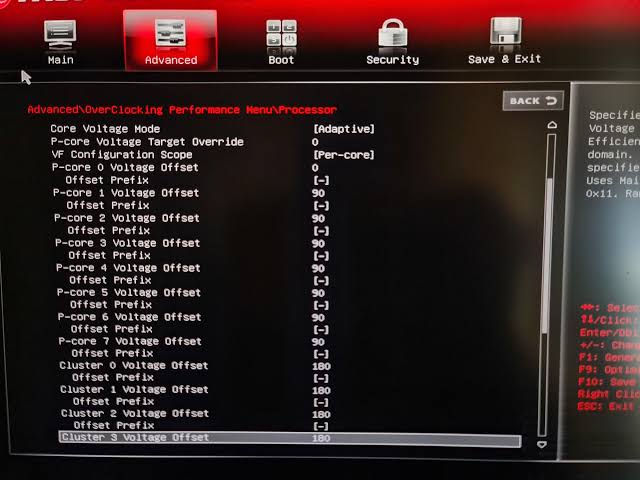
Intel’s approach relies on adjusting the Vcore (Core Voltage) directly via the motherboard BIOS or the Intel Extreme Tuning Utility (XTU). Like AMD, you should avoid “Static” or “Fixed” voltages, as they force the CPU to draw high voltage even when idling on the desktop.
A common misconception is that altering voltages is inherently dangerous. This is a confusion between over-volting and undervolting.
The Only Risk is Instability (Data Loss):
The sole danger of an aggressive undervolt is software instability. If the voltage drops too low, the transistors cannot switch fast enough to maintain the clock speed. The processor will lose synchronization, resulting in a sudden crash, a frozen screen, or an unexpected reboot.
If this happens while you are working on an unsaved Word document or a video project, you will lose your unsaved progress. Therefore, it is critical to thoroughly stress-test your undervolt utilizing tools like OCCT or Prime95 for several hours to guarantee 100% stability before using the PC for mission-critical work.
In the current era of hardware, running a flagship graphics card or processor at factory stock settings is highly inefficient. Manufacturers optimize for high manufacturing yields, not thermal efficiency. By spending a single afternoon mastering the V/F curve in MSI Afterburner and the Curve Optimizer in your motherboard BIOS, you can easily strip 100 watts of unnecessary heat out of your chassis, silence your cooling fans, and extend the lifespan of your expensive silicon, all while maintaining the exact performance you paid for.




