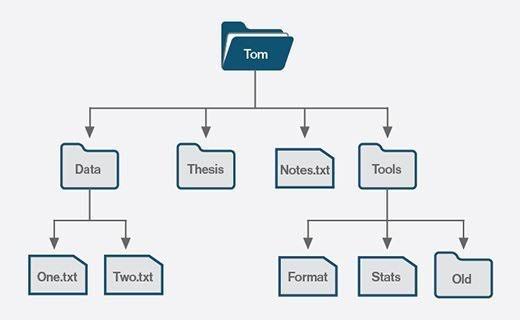
When you purchase a brand-new hard drive or SSD, it is essentially a blank slate—a vast expanse of billions of microscopic sectors capable of holding magnetic charges or trapped electrons. However, without a structural framework, an operating system has absolutely no way to know where one file ends, where another begins, or how to organize them into the hierarchical folders we navigate daily.
This structural framework is the File System. It is the invisible digital index, the librarian, and the traffic controller of your storage drive. The file system you choose when formatting a drive dictates the maximum file size you can save, whether the drive can be read by both Macs and PCs, how vulnerable your data is to sudden power loss, and how the drive protects against silent data corruption.
As storage capacities have grown from Megabytes to Petabytes, file systems have evolved from simple indexing tables into incredibly complex, self-healing relational databases. This comprehensive guide dissects the architecture of modern file systems, comparing the standards used by Windows, macOS, Linux, and enterprise storage servers.
1. The Core Functions of a File System
Regardless of the operating system, every file system must perform several fundamental tasks to bridge the gap between human-readable data and raw binary storage.
- Block Allocation: File systems divide the physical drive into logical “blocks” or “clusters” (often 4 Kilobytes in size). When you save a 12KB document, the file system allocates three specific blocks to hold that data and records their exact physical addresses.
- Metadata Management: The file system doesn’t just store the file itself; it stores critical data about the file. This includes the file name, creation date, modified date, folder location, and security permissions (who is allowed to read or write the file).
- Journaling: In older file systems, if the power went out exactly while you were saving a file, the index would become corrupted, often destroying the entire drive’s directory. Modern systems use a “Journal.” Before writing the actual file to the disk, the file system writes its intention to do so in a dedicated log (the journal). If the power fails, the OS simply reads the journal upon reboot and cleanly completes or rolls back the interrupted transaction, virtually eliminating index corruption.
2. NTFS (New Technology File System): The Windows Standard
Introduced by Microsoft in 1993 with Windows NT, NTFS has been the default file system for the Windows operating system for decades. Despite its age, continuous updates have kept it relevant and powerful.
- Robust Journaling and Security: NTFS is a fully journaled file system. It also natively supports Access Control Lists (ACLs), which allow network administrators to set granular, user-specific read/write permissions on individual folders in a corporate environment.
- Large File Support: NTFS has a theoretical maximum file size of 16 Exabytes (16 million Terabytes), completely eliminating the frustrating 4GB file size limit found in older FAT32 flash drives.
- Native Features: It supports transparent on-the-fly file compression, Volume Shadow Copy Service (VSS) for taking live backups of open files, and BitLocker for full-disk encryption.
- The Drawback (Cross-Platform Compatibility): While NTFS is perfect for Windows, it is a proprietary, closed-source format. macOS can natively read files from an NTFS drive, but Apple does not include the ability to write to them. If you plug an NTFS drive into a Mac, it mounts as “Read-Only” unless you purchase third-party driver software.
3. APFS (Apple File System): The Flash-Optimized Future
For 20 years, Apple relied on HFS+ (Mac OS Extended). However, HFS+ was designed in an era of spinning mechanical hard drives and floppy disks. In 2017, Apple introduced APFS, a file system built from the ground up specifically for Solid State Drives (SSDs) and flash memory.
- Optimized for Flash: APFS natively understands the wear-leveling and TRIM requirements of modern NVMe storage, drastically extending the lifespan of internal Mac storage compared to older file systems.
- Copy-on-Write (CoW): This is APFS’s superpower. In older file systems, if you duplicate a 10GB video file, the system physically copies 10GB of data to a new location on the disk, taking time and consuming 10GB of new space. With APFS’s Copy-on-Write, duplicating that file is instantaneous and takes up zero extra space. APFS simply creates a second metadata pointer to the exact same physical data. It only consumes new space if you actually modify one of the copies.
- Atomic Snapshots: APFS can take instantaneous, read-only snapshots of the entire drive’s state. This is what powers modern Time Machine backups. If an update breaks your Mac, you can instantly roll back to an APFS snapshot from 10 minutes prior.
- Space Sharing: Instead of rigidly partitioning a drive (e.g., 500GB for Drive C, 500GB for Drive D), APFS uses “Containers.” Multiple logical volumes share the exact same pool of free space dynamically.
- The Drawback: APFS is completely unreadable by Windows computers out of the box.
4. The Linux Ecosystem: EXT4 and Beyond
The Linux operating system is inherently flexible, allowing users to format drives in dozens of different file systems (XFS, JFS, F2FS) depending on the specific server workload. However, two stand out as the primary standards.
EXT4 (Fourth Extended File System)
EXT4 is the default file system for almost all major Linux distributions (Ubuntu, Debian, Mint).
- It is the definition of rock-solid reliability. It is a highly mature, deeply tested, journaled file system designed to prioritize stability and performance above bleeding-edge features.
- Unlike Windows NTFS, EXT4 handles thousands of microscopic files incredibly efficiently, making it the perfect file system for running web servers and complex databases.
Btrfs (B-Tree File System)
Pronounced “Butter FS” or “Better FS,” Btrfs is the modern challenger to EXT4, heavily pushed by distributions like Fedora and enterprise NAS builders like Synology.
- It introduces Copy-on-Write (like APFS) and instantaneous snapshotting.
- Data Checksumming: Btrfs reads and calculates cryptographic hashes for every file. If “bit rot” causes a file to become silently corrupted on the hard drive, Btrfs will detect the mismatch instantly upon reading the file and alert the system, preventing you from backing up corrupted data.
5. ZFS (Zettabyte File System): The Enterprise Behemoth
ZFS is not just a file system; it is a revolutionary combination of a file system and a logical volume manager, originally developed by Sun Microsystems. It is the absolute gold standard for enterprise data centers, high-end homelabs, and custom NAS builds (using TrueNAS).
- Immunity to Data Corruption: ZFS was built with the assumption that all hardware will eventually lie to you. It uses aggressive checksumming on every single block of data. If it detects bit rot, and the drive is part of a redundant array, ZFS will automatically self-heal the file on the fly by pulling the correct data from the parity drive, entirely without human intervention.
- Software RAID Integration (RAID-Z): Standard file systems require a separate hardware RAID card to manage multiple drives. ZFS manages the RAID math directly at the file system layer. This eliminates the infamous “write hole” vulnerability that plagues traditional RAID 5 setups during a power loss.
- The Drawback (Hardware Demands): The extreme data integrity of ZFS comes at a high hardware cost. It heavily utilizes RAM for its Adaptive Replacement Cache (ARC). The general rule of thumb is that ZFS requires 1GB of ECC (Error-Correcting Code) RAM for every 1 Terabyte of storage you manage. Running a 60TB ZFS server requires a massive amount of memory just to function efficiently.
6. exFAT: The Universal Translator for Portable Storage
If NTFS is for Windows, APFS is for Mac, and EXT4 is for Linux, how do you format a portable USB external drive so that it can be seamlessly plugged into all three systems? The answer is exFAT (Extensible File Allocation Table).
- The Successor to FAT32: Older flash drives used FAT32, which was universally compatible but physically incapable of storing a single file larger than 4GB. Microsoft designed exFAT specifically for modern flash media to break this limit.
- Universal Compatibility: exFAT is natively supported—with full read and write capabilities—on Windows, macOS, Linux, Android devices, modern smart TVs, and video game consoles (PlayStation/Xbox).
- The Trade-off (Lack of Journaling): To achieve this universal compatibility and keep the file system lightweight, exFAT does not include journaling. This makes it highly vulnerable to data corruption if it is unplugged improperly. If you yank an exFAT drive out of a computer while data is writing, you are far more likely to destroy the file system index than you would on NTFS or APFS.
Conclusion: Selecting the Right Foundation
Choosing a file system is no longer a one-size-fits-all scenario. It is a strategic decision based on the hardware environment and the data’s ultimate purpose.
- For an Internal Windows OS Drive: You have no choice; you must use NTFS.
- For an Internal Mac OS Drive: You must use APFS.
- For a Portable USB Drive / External SSD: If you only use Macs, format to APFS. If you use both Macs and PCs, format to exFAT (but always eject it safely).
- For a Linux Web Server: Stick with the rock-solid stability of EXT4.
- For a massive, multi-drive NAS Archive: Utilize the self-healing and snapshotting powers of ZFS or Btrfs to protect against long-term bit rot.