In an era dominated by hyper-fast internal NVMe drives and ubiquitous cloud computing, the humble external drive might seem like a relic of the past. However, the reality of modern data management dictates otherwise. From digital nomads needing to edit massive 8K video files in remote cafes without Wi-Fi, to IT administrators transporting encrypted bare-metal system backups between physical office branches, portable storage remains an absolute necessity.
The market for external storage is vastly more complex than it appears on the surface. Purchasing the wrong drive can result in excruciatingly slow transfer speeds, cross-platform formatting incompatibilities, or catastrophic data loss due to a minor physical drop.
This comprehensive guide dissects the technology behind portable storage, untangles the confusing landscape of modern connectivity protocols (like the USB-C nomenclature), explains the critical importance of file system formatting, and provides actionable best practices for securing your data on the move.
1. Core Technologies: Portable HDDs vs. Portable SSDs
The fundamental architectural differences between Hard Disk Drives (HDDs) and Solid State Drives (SSDs) dictate their performance, physical durability, and optimal use cases when removed from the safety of a desktop chassis and thrust into a backpack.
Portable Hard Disk Drives (HDDs)
Portable HDDs rely on the traditional mechanical architecture of spinning magnetic platters and moving read/write actuator arms.
The Capacity Advantage: HDDs reign supreme in cost-per-terabyte. If you need to transport 5TB, 10TB, or 18TB of archival data, mechanical drives are the only financially viable option.
The Fragility Factor: Mechanical drives are incredibly vulnerable to physical trauma. If you drop a running portable HDD, the read/write head will likely crash into the spinning platter, permanently destroying the magnetic coating and irretrievably destroying your data. Even when powered off, severe shocks can misalign the actuator arm.
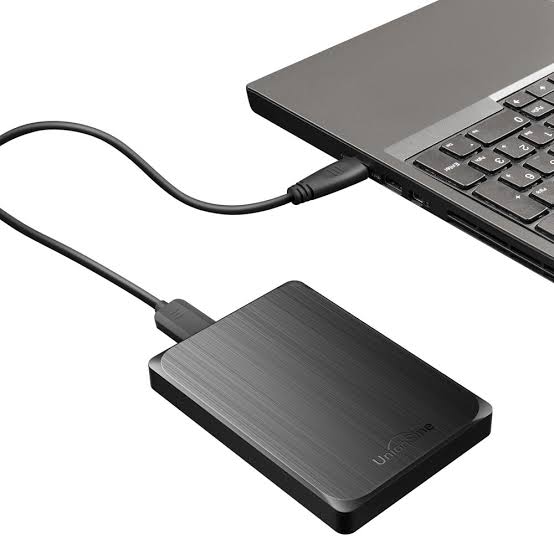
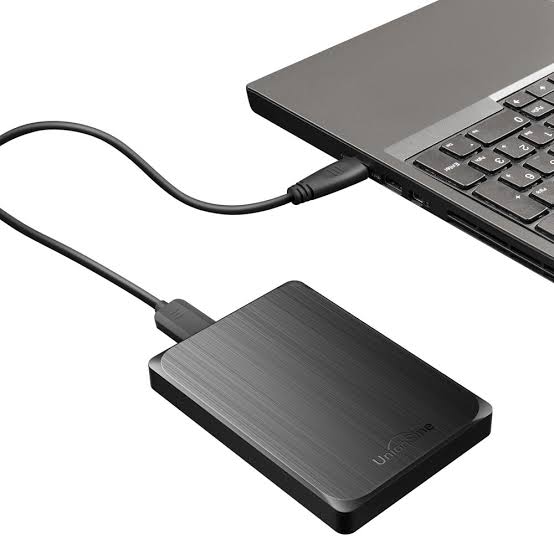
Power Requirements: Portable HDDs generally come in two form factors. The smaller 2.5-inch drives (usually maxing out around 5TB) can draw enough power directly from a laptop’s USB port (bus-powered). The larger 3.5-inch desktop external drives (offering 8TB to 22TB+) require a dedicated AC power adapter plugged into a wall outlet, severely limiting their true portability.
Extreme Durability: Because there are no spinning disks or fragile mechanical arms, portable SSDs can survive severe physical trauma. You can drop them onto concrete, toss them in a bag, or subject them to extreme vibrations without risking mechanical failure.
Blistering Speed: While a portable HDD might struggle to maintain 130 MB/s, a modern portable NVMe SSD can easily push 1,000 MB/s to 2,800 MB/s, allowing video editors to scrub through high-resolution footage directly off the external drive without experiencing dropped frames or software lag.
Compact Form Factors: SSDs require very little physical space and operate entirely on bus power. Modern portable SSDs are often smaller than a credit card and weigh only a few ounces.
2. Untangling the Connectivity Mess: USB, Type-C, and Thunderbolt
The greatest source of consumer confusion regarding external storage is the interface protocol. Buying a drive capable of 2,000 MB/s is completely useless if you plug it into a port or use a cable that bottlenecks the speed to 40 MB/s.
You must separate the physical connector shape from the data protocol running through it.
The Physical Connectors
USB Type-A: The classic, rectangular plug that has been standard on PCs for decades. It is physically large and only plugs in one way.
USB Type-C: The modern, small, oval-shaped connector that is reversible. Crucial Note: A USB-C connector does not automatically mean fast speeds. A USB-C cable can carry slow USB 2.0 data, ultra-fast Thunderbolt data, or even video signals. The shape dictates nothing about the speed.
The Underlying Protocols and Speeds
The USB Implementers Forum (USB-IF) has created a notoriously confusing naming convention. Here is the modern translation of what to look for when buying a drive:
USB 2.0 (High-Speed): Max speed of 480 Mbps (~40 MB/s). Archaic and painfully slow. Never use this for modern external drives.
USB 3.2 Gen 1 (SuperSpeed): Formerly known as USB 3.0. Max speed of 5 Gbps (~500 MB/s). This is the standard for most basic external hard drives and older SATA-based external SSDs.
USB 3.2 Gen 2 (SuperSpeed 10Gbps): Max speed of 10 Gbps (~1,000 MB/s). This is the sweet spot for modern mainstream portable NVMe SSDs (like the Samsung T7 or SanDisk Extreme).
USB 3.2 Gen 2×2: Max speed of 20 Gbps (~2,000 MB/s). This utilizes two lanes of data simultaneously. Warning: Very few laptop motherboards actually support the 2×2 standard, meaning these expensive drives will often fall back to 10 Gbps speeds on most machines.
Thunderbolt 3 and Thunderbolt 4: An Intel/Apple protocol that utilizes the USB-C connector. It offers a massive 40 Gbps (~4,000 MB/s) bandwidth. Thunderbolt external drives are the absolute fastest on the market, used by professional cinematic video editors, but they are highly expensive and usually require a Thunderbolt-certified port on the host computer to function at all.
3. File Systems: The Key to Cross-Platform Compatibility
When you take a brand new external drive out of the box, it is formatted with a specific File System—the digital index that tells the operating system how to physically write and locate files on the disk. The file system you choose determines which computers can read and write to the drive.
If you format a drive incorrectly, you might arrive at a client’s office with critical files, only to find their computer cannot recognize the drive.
NTFS (New Technology File System): The native file system for Windows.
Pros: Highly secure, supports massive file sizes, and includes journaling to prevent data corruption during power loss.
Cons: macOS can read NTFS drives, but it cannot write to them natively without purchasing third-party software (like Paragon NTFS). Do not use this if you frequently share drives with Mac users.
APFS (Apple File System) and HFS+ (Mac OS Extended): The native file systems for modern and older Apple computers, respectively.
Pros: Deeply integrated with macOS features like Time Machine backups and hardware encryption.
Cons: Windows computers cannot read or write to these formats natively at all. Plugging an APFS drive into a Windows PC will prompt an error asking you to format (erase) the drive.
FAT32 (File Allocation Table 32): The oldest and most universally recognized format.
Pros: Works on Windows, macOS, Linux, older smart TVs, and video game consoles.
Cons: It has a hard limitation: You cannot store a single file larger than 4GB. In the age of 4K video, this makes FAT32 entirely obsolete for heavy media workloads.
exFAT (Extensible File Allocation Table): The modern king of portable storage.
Pros: Designed specifically for flash drives and external storage. It works flawlessly with both Windows and macOS natively (read and write), and it completely removes the 4GB file size limit of FAT32.
Cons: It lacks the advanced journaling and data corruption protection of NTFS or APFS. You must be careful to properly eject exFAT drives before unplugging them to avoid table corruption.
Verdict:If you need to move data seamlessly between Windows PCs and MacBooks, format your portable drive to exFAT immediately upon purchase.
4. Security on the Move: Encryption Strategies
The portability of an external drive is its greatest asset and its most terrifying vulnerability. Leaving an unencrypted portable SSD containing company financial records, client databases, or personal tax returns on an airplane seat or in a coffee shop is a catastrophic security breach.
If you lose an unencrypted drive, whoever finds it simply plugs it into their computer, and 100% of your data instantly mounts on their desktop. You must utilize encryption for portable media.
Hardware Encryption
Some high-end portable drives (like the Samsung T7 Touch or IronKey drives) feature built-in hardware encryption. The encryption mathematics are handled by a dedicated microchip inside the drive enclosure itself, rather than by your computer’s CPU.
Pros: Extremely fast, virtually unhackable without the key, and completely independent of the operating system. Some models feature physical numeric keypads or fingerprint scanners right on the chassis to unlock the drive.
Cons: If the internal encryption chip fails, the data is gone forever, even if the flash memory is perfectly fine. Furthermore, if you forget the PIN code, the manufacturer cannot help you; the drive is a brick.
Software Encryption
You can use the operating system to encrypt standard, non-hardware-encrypted drives.
BitLocker to Go (Windows): Available in Windows Pro and Enterprise editions. It encrypts the entire external drive using AES-128 or AES-256 encryption. You must type in a password every time you plug the drive into a new PC.
FileVault / Disk Utility (macOS): Mac users can easily encrypt external APFS or Mac OS Extended drives via the native Disk Utility, securing them with a robust password.
VeraCrypt (Cross-Platform/Open Source): For advanced users, VeraCrypt is an open-source auditing standard. You can create an encrypted “container” file on an exFAT drive, allowing you to securely mount and unlock the encrypted volume on both Windows and Linux systems securely.
5. Best Practices for Portable Drive Management
To ensure maximum longevity and data integrity when dealing with portable storage, strict hardware hygiene is required.
1. The “Safely Remove Hardware” Rule is Not a Myth
Operating systems utilize “write caching” to speed up performance. When you tell your computer to copy a file to the external drive, the OS may tell you the transfer is complete, but it is actually holding the final pieces of data in the system’s volatile RAM, waiting for an optimal moment to quietly finish writing them to the drive in the background. If you simply yank the USB cable out of the computer while this invisible background process is happening, you will severely corrupt the file system index. Always click “Safely Remove Hardware” (Windows) or drag the drive to the “Trash/Eject” icon (Mac). This forces the OS to flush the cache and cease all electrical activity to the drive.
2. Environmental Protection and Ruggedization
If you work in harsh environments (e.g., outdoor photography, construction sites, industrial manufacturing), standard consumer drives will fail rapidly due to dust, moisture, and impact. Invest in “Ruggedized” drives (like the LaCie Rugged or SanDisk Extreme PRO). Look for official IP (Ingress Protection) ratings. An IP68 rating means the drive enclosure is completely dust-tight and can survive continuous submersion in water, while specialized rubberized bumpers absorb the shock of a 2-meter drop onto concrete.
3. The 3-2-1 Rule Still Applies
The most dangerous thing you can do with a portable drive is use it as your only backup. An external hard drive sitting in the same laptop bag as your MacBook is not a true backup; if the bag is stolen at the airport, you lose both the primary data and the backup simultaneously. Portable drives should be viewed as transport mechanisms and secondary local targets, not as permanent archival vaults replacing secure, off-site cloud storage.