When a computer runs excessively hot, spins its fans loudly at idle, or suffers from severe performance degradation, enthusiasts immediately reach for their screwdrivers to check thermal paste or reconfigure case airflow. However, in many instances, the physical cooling hardware is functioning flawlessly. The root cause of the thermal throttling and sluggishness is entirely virtual: rogue software generating unnecessary computational load.
A processor only generates extreme heat when it is actively executing instructions and drawing electrical current. If your PC sounds like a jet engine while you are simply staring at an empty Windows desktop, a background application, an OS service, or hidden malware is aggressively monopolizing your hardware.
Understanding how software dictates hardware thermals, diagnosing memory leaks, and mastering advanced operating system diagnostic tools like Sysinternals Process Explorer are critical skills for permanently resolving “invisible” performance bottlenecks.
1. The Thermal Impact of Rogue Software (Failing to Sleep)
To understand why background software causes heat, you must understand how modern processors save power.
- C-States (Deep Sleep): Modern Intel and AMD CPUs are incredibly efficient when idle. If no software requires calculation, the CPU drops its clock speed (often below 1.0GHz), slashes its voltage, and enters deep sleep modes known as C-States (e.g., C6 or C7). In these states, a massive 24-core CPU might draw less than 15 watts of total power, generating virtually zero heat and allowing the cooling fans to stop completely.
- The Interruption: If a poorly coded background application constantly demands minor calculations (a continuous 10% to 15% CPU load), the processor is physically forbidden from entering these deep sleep C-states. It remains in an active, elevated power state, drawing 40 to 60 watts continuously.
- The Thermal Result: This constant, unnecessary power draw slowly saturates the CPU heatsink. The ambient temperature inside the case rises, the motherboard is forced to ramp up the fan speeds, and the user experiences a loud, hot system despite “not doing anything.”
2. Decoding Memory Leaks (RAM Exhaustion)
While high CPU usage generates heat directly, abnormal RAM usage degrades performance by crippling the operating system’s storage architecture.
- What is a Memory Leak? When you open a program, the operating system allocates a specific chunk of physical RAM for that software to use. When you close the program (or when the program finishes a task), it is supposed to release that RAM back to the OS. A “memory leak” is a software bug where the program continually requests more RAM but forgets to release it. Over several hours or days, this single buggy program will quietly consume 100% of your available system memory.
- The Swap File Catastrophe: Once your physical RAM hits 100% capacity, the operating system panics. To prevent a total crash, Windows begins aggressively moving data out of the ultra-fast RAM and writing it to the SSD (the Pagefile or Swap file).
- The Performance Impact: SSDs are fast, but they are exponentially slower than physical RAM. When the OS is forced to use the SSD as emergency memory, the entire system grinds to a halt. Mouse cursors lag, audio stutters, and switching between open windows takes several seconds. Furthermore, this constant, panicked writing to the SSD drastically reduces the physical lifespan of the storage drive.
3. Common Culprits of High Background Usage
Software bloat and resource leaks generally fall into a few distinct categories.
- OS Indexing and Telemetry: On Windows, services like
Windows Search Indexer or SysMain (formerly SuperFetch) often get stuck in endless loops, scanning corrupted files and pegging the disk and CPU at 100% for hours.
- Bloatware and RGB Software: Hardware manufacturer control centers (like ASUS Armoury Crate, Corsair iCUE, or Razer Synapse) are notorious resource hogs. They run multiple background services to poll temperature sensors and sync lighting, often consuming 5% to 10% of a CPU’s total processing power simply to make fans glow rainbow colors.
- Browser Inefficiency: Modern web browsers like Chrome or Edge treat every single open tab as an entirely separate, isolated process. Leaving 50 tabs open in the background—especially tabs running heavy JavaScript, video ads, or auto-refreshing social media feeds—can easily consume 16GB of RAM and keep the CPU constantly active.
- Stuck Game Launchers: Applications like the Epic Games Store, Steam, or EA App frequently experience bugs where they fail to close properly, remaining active in the background and silently consuming an entire CPU core while downloading invisible updates.
4. The Threat of Cryptojacking (Malware)
If your computer suddenly runs incredibly hot and loud at idle, and you cannot find a legitimate program causing it, you may be the victim of Cryptojacking.
- The Attack: Hackers infect your machine with a silent, hidden application designed to mine cryptocurrency (like Monero) using your hardware. They steal your electricity and computational power to generate money for themselves.
- The Symptoms: The CPU or GPU will run at 90% to 100% load indefinitely while the PC is supposed to be idle.
- The Evasion Tactic: Modern cryptominers are highly sophisticated. They are programmed to monitor Windows system calls. The exact millisecond you press
CTRL+ALT+DEL to open the Task Manager, the miner instantly pauses itself and drops CPU usage to 0% to hide from you. The moment you close the Task Manager, the miner ramps back up to 100% and the fans start screaming again.
5. Diagnostic Tools and Eradication
Finding and killing rogue software requires moving beyond simple guesswork and using robust telemetry tools to identify the exact executable file causing the load.
Level 1: Advanced Task Manager Analysis
The standard Windows Task Manager is the first line of defense, but it must be used correctly.
- Open Task Manager (
CTRL + SHIFT + ESC) and click More Details.
- Go to the Details tab (not the Processes tab). The Details tab strips away friendly grouping and shows you the raw
.exe files.
- Click the CPU column header to sort by highest usage. Leave the window open and watch it for 60 seconds. Ignore
System Idle Process (which represents unused CPU power). If an unknown executable like svchost.exe or a random string of letters is constantly bouncing between 15% and 30%, you have found your culprit.
- Click the Memory column header to hunt for memory leaks. If a simple background utility is consuming 8,000,000 K (8 Gigabytes) of RAM, it is leaking and must be terminated.
Level 2: Sysinternals Process Explorer (The Gold Standard)
If Task Manager cannot identify the issue (or if a cryptominer is hiding from it), you must download Process Explorer, a free, advanced diagnostic tool officially provided by Microsoft Sysinternals.
- Deep Inspection: Process Explorer shows exactly which parent application launched a background service. If
svchost.exe is using 30% of your CPU, Process Explorer allows you to hover over it and see exactly which specific Windows service (e.g., Windows Update or a third-party driver) is hiding inside that host process.
- VirusTotal Integration: Process Explorer has a built-in feature to cross-reference every running
.exe on your system with the VirusTotal database. With one click, it will flag any background process that 50+ antivirus engines have identified as a cryptominer or trojan, allowing you to instantly right-click and “Kill Process Tree.”
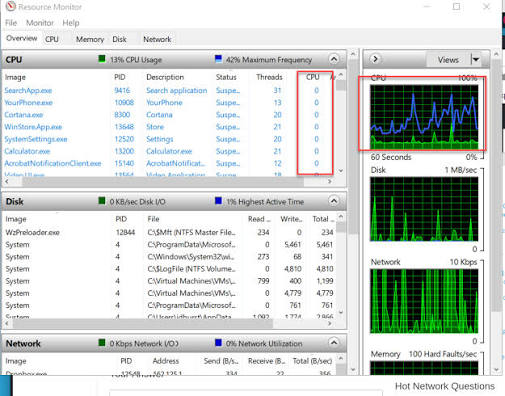
Level 3: Resource Monitor (Hunting Disk Hogs)
If your computer is lagging but CPU and RAM usage look normal, a program might be quietly maxing out your SSD’s read/write bandwidth.
- Press the Windows key, type Resource Monitor, and open it.
- Go to the Disk tab and look at “Processes with Disk Activity.” This will reveal if an antivirus scan is stuck in an endless loop reading your drive, or if Windows is quietly downloading a massive update in the background.
6. Actionable Solutions and Prevention
Once you have identified the software causing the unnecessary thermal load, you must eradicate it or restrict its permissions.
- The Nuclear Option (Clean Boot): If you cannot isolate the rogue process, boot Windows into “Safe Mode” or perform a “Clean Boot” (disabling all non-Microsoft startup services via
msconfig). If the PC suddenly idles perfectly and silently in a Clean Boot, you have proven the issue is a third-party application, not Windows or your hardware.
- Audit Startup Apps: Use Task Manager’s “Startup” tab to mercilessly disable applications. Discord, Spotify, Steam, and printer utilities do not need to launch silently in the background every time you turn on your PC. Force them to open only when you manually click their icons.
- Tame the Browser: Enable “Efficiency Mode” or “Memory Saver” in Chrome and Edge. This forces the browser to aggressively put background tabs to sleep, instantly freeing up gigabytes of RAM and stopping background JavaScript from generating CPU heat.
- Reinstall or Replace Bloatware: If a manufacturer’s RGB software is constantly using 10% of your CPU, uninstall it completely. Look for lightweight, open-source alternatives (such as OpenRGB for lighting control or Fan Control for cooling), which utilize practically zero system resources.