For decades, monitoring graphics card temperatures was a straightforward endeavor. You opened a hardware utility, looked at the single metric labeled “GPU Temperature,” and as long as that number stayed below 85°C, you could game in peace. However, the architecture of modern graphics processing units (GPUs) has grown exponentially more complex. Today’s flagship cards from NVIDIA and AMD are massive, densely packed silicon slabs that draw up to 600 watts of power, surrounded by hyper-fast memory modules and immense power delivery subsystems.
Because of this architectural density, heat does not distribute evenly across the printed circuit board (PCB). A single, generalized temperature reading is no longer sufficient to guarantee system stability or prevent thermal throttling. Modern diagnostic tools now expose a trinity of critical temperature metrics: GPU Core (Edge), GPU Hotspot (Junction), and VRAM (Memory Junction).
Understanding the distinct physical locations of these sensors, their safe operating ranges, and the relationships between them is essential for diagnosing performance degradation, determining when a card requires maintenance, and safely overclocking your hardware.
1. GPU Core (Edge) Temperature: The Traditional Baseline
When a game’s built-in performance overlay or a basic software utility (like Windows Task Manager) displays your “GPU Temp,” it is almost universally displaying the Core (or Edge) temperature.
What It Measures
Historically, this temperature was measured by a single sensor located near the physical edge of the silicon die, or it was calculated as an average of several sensors across the chip. It represents the generalized, macroscopic thermal state of the primary graphics processor.
Safe Operating Ranges
- Idle (Desktop/Web Browsing): 30°C to 45°C. (Note: Most modern GPUs feature a “Zero RPM” mode, meaning the fans will completely stop spinning when the Core is below 50°C to eliminate noise. Seeing an idle temp of 45°C with no fans spinning is perfectly healthy).
- Gaming Load: 65°C to 80°C.
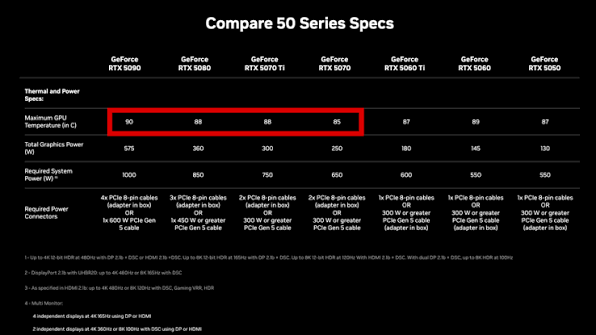
- Maximum Safe Limit: Most NVIDIA and AMD architectures consider 83°C to 85°C the soft limit for the Core, at which point the card will gently begin lowering boost clocks to maintain equilibrium.
The Limitation of the Core Metric
The Core temperature is heavily smoothed and averaged. While it provides a good baseline for assessing overall case airflow and cooler mounting, it completely masks localized overheating. Your Core temperature might read a perfectly safe 72°C, while a specific microscopic cluster of transistors on the opposite side of the die is actively burning up and forcing the card to throttle. This is why chipmakers introduced the Hotspot metric.
2. GPU Hotspot (Junction) Temperature: The True Throttling Trigger
The introduction of the Hotspot (often labeled as Junction Temperature in AMD drivers) fundamentally changed how enthusiasts monitor hardware.
What It Measures
A modern GPU die is enormous. Instead of relying on one sensor, manufacturers embed an intricate grid of dozens of microscopic digital thermal sensors across the entire silicon surface. The Hotspot metric does not represent one specific physical location; instead, it is dynamic. The GPU’s internal controller continuously polls every single sensor in the grid, finds the absolute highest temperature reported by any individual sensor at that exact millisecond, and outputs that single highest value as the “Hotspot.”
Why the Hotspot Matters
The Hotspot is the sole metric that dictates thermal throttling. The GPU’s internal boost algorithm (like NVIDIA’s GPU Boost or AMD’s Precision Boost) ignores the average Core temperature. If the Hotspot hits the critical threshold, the card will instantly slash its clock speeds and voltage to protect the silicon.
Safe Operating Ranges and Throttling Limits
- NVIDIA (RTX 3000/4000 Series): The Hotspot throttling limit is strictly hardcoded to 105°C.
- AMD (Radeon RX 6000/7000 Series): AMD architectures are explicitly designed to run hotter safely, with a hardcoded Hotspot throttling limit of 110°C.
The Golden Rule: The Core-to-Hotspot Delta
The most valuable diagnostic tool you have is the mathematical difference (the “Delta”) between your Core temperature and your Hotspot temperature under a heavy, sustained 3D load.
- Healthy Delta (10°C to 15°C): If your Core is 70°C and your Hotspot is 82°C (a 12-degree delta), your cooling system is functioning flawlessly. The thermal paste is evenly distributed, and the cooler is mounted with proper, flat pressure.
- Warning Delta (20°C to 25°C): A delta in this range suggests the thermal paste is beginning to dry out or that the mounting pressure is slightly uneven. It is generally safe, but performance may not be optimal.
- Critical Delta (30°C+): If your Core is 70°C, but your Hotspot is 105°C (a 35-degree delta), you have a severe mechanical issue. This phenomenon is usually caused by the “Pump-Out Effect.” Through thousands of heating and cooling cycles, the thermal paste has literally been pumped out from the center of the die. A section of bare silicon is now touching dry copper. A delta exceeding 30°C requires immediate disassembly of the graphics card and a complete re-paste.
3. VRAM (Memory Junction) Temperature: The Hidden Furnace
The graphics processor is not the only component on the PCB generating massive heat. Surrounding the GPU die are several Video RAM (VRAM) chips, responsible for storing the immense textures and frame buffers required by high-resolution gaming and AI workloads.
The Rise of GDDR6X
For generations, VRAM generated relatively little heat. However, the introduction of ultra-high-bandwidth GDDR6X memory (used heavily in NVIDIA’s RTX 3080, 3090, 4080, and 4090 series) changed the equation. GDDR6X uses complex PAM4 signaling, drawing significantly more voltage and generating astonishing amounts of heat.
During the cryptocurrency mining boom of 2021, users discovered that while their GPU Core was sitting at a cool 55°C, their GDDR6X memory was silently exceeding 110°C and actively degrading the hardware.
Safe Operating Ranges
Unlike the core silicon, memory chips are rated for different thermal tolerances by their manufacturers (typically Micron or Samsung).
- Standard GDDR6: Generally runs cool, peaking between 70°C and 85°C.
- GDDR6X: Runs incredibly hot. Operating at 90°C to 100°C under heavy load (like 4K gaming or machine learning generation) is considered within operational spec by Micron.
- Thermal Throttling Threshold: VRAM will typically begin heavily throttling the memory bandwidth when it reaches 105°C to 110°C, leading to a sudden, massive drop in gaming framerates or rendering speeds.
Fixing Overheating VRAM: The Thermal Pad Dilemma
Unlike the GPU die, which uses thermal paste, VRAM chips are cooled using Thermal Pads—squishy, highly conductive silicone pads that bridge the gap between the memory chips and the metal heatsink.
If your VRAM is hitting 105°C, the factory thermal pads have either dried out, leaked their silicone oils (bleeding), or were of terrible quality to begin with. Fixing this is highly complex:
- Strict Thickness Requirements: You cannot simply buy random thermal pads on Amazon. VRAM clearance is machined to the tenth of a millimeter. If a card requires a 1.5mm pad and you use a 2.0mm pad, the pads will prevent the main heatsink from touching the GPU die, causing the GPU core to instantly overheat. If you use a 1.0mm pad, it won’t touch the heatsink at all, and the VRAM will burn up. You must research the exact pad thickness required for your specific AIB model (e.g., ASUS ROG Strix vs. MSI Suprim).
- Copper Plate Mods: For extreme cases (like the notoriously hot RTX 3090 Founders Edition), enthusiasts entirely replace the squishy thermal pads with custom-machined copper shims and liquid metal to permanently solve memory overheating.
4. VRM (Voltage Regulator Module) Temperatures
While less commonly exposed in standard monitoring software (and sometimes lacking dedicated sensors entirely on budget models), the VRMs are critical to card stability. The VRMs step down the 12V power from your PSU into the exact ~1.0V needed by the GPU.
- VRM components (MOSFETs and chokes) are highly robust and are often rated to safely operate at temperatures up to 125°C.
- However, if they run consistently above 100°C due to poor airflow, they lose electrical efficiency, causing voltage ripples that can lead to driver crashes, black screens, or game crashes even when the GPU core is perfectly cool.
- If your card’s fans suddenly spin up to 100% like a jet engine, but the Core and Hotspot are both at 60°C, the VRM sensor has likely tripped a thermal panic mode.
5. Actionable Diagnostics and Mitigation
If you have downloaded HWiNFO64, run a heavy 3D benchmark (like 3DMark Time Spy or FurMark), and discovered that your Hotspot or VRAM metrics are in the danger zone, you have several avenues for mitigation.
Software Fixes (Non-Invasive)
- Undervolting: This is the most effective software-level fix for GPU thermals. Using MSI Afterburner, you can manipulate the Voltage/Frequency curve. By forcing the GPU to hit its target clock speed at a lower voltage (e.g., 900mV instead of 1050mV), you drastically reduce total power draw. This can easily drop Hotspot and Core temperatures by 10°C without losing a single frame per second.
- Custom Fan Curves: Factory fan profiles prioritize silence over longevity. Create a custom curve that ramps the fans to 80% speed when the Core hits 70°C, ensuring massive airflow over the heatsink before the Hotspot can reach throttling territory.
- Power Limit Reduction: If you do not want to manually undervolt, simply lowering the “Power Limit” slider in Afterburner to 85% will dramatically lower all temperatures in exchange for a negligible 2% to 3% loss in peak performance.
Hardware Fixes (Invasive)
- Case Airflow Optimization: A graphics card cannot cool itself if it is suffocating in a glass box. Ensure you have high-static-pressure intake fans blowing cool ambient air directly underneath the GPU.
- Complete Repaste and Repad: If the card is older than three years, or the Core-to-Hotspot Delta exceeds 25°C, software fixes will not save you. You must void the warranty (where applicable), remove the heatsink, carefully clean the bare die with 99% isopropyl alcohol, manually spread a high-viscosity thermal paste (to resist future pump-out), replace the VRAM thermal pads with precise aftermarket equivalents, and reassemble the card with tight, even pressure.