By default, home routers act as a strict digital bouncer. Their built-in firewall blocks all unsolicited incoming traffic from the internet to keep your computers, cameras, and smart devices safe from automated hacking attempts. However, if you are actively hosting a server, accessing your network remotely, or playing certain peer-to-peer multiplayer games, you must deliberately poke highly specific holes in that firewall.
1. Understanding the Mechanics of NAT
Network Address Translation (NAT) is the fundamental protocol that allows dozens of devices in your home to share a single public IP address provided by your ISP.
- The Firewall Effect: NAT creates an intrinsic layer of security. When your laptop requests a web page, the router logs that outgoing request. When the website’s data arrives back at your modem, NAT checks its table, sees the laptop asked for it, and forwards the data inward.
- Dropped Packets: If unsolicited data arrives from the open internet (e.g., a hacker running an automated port scan), NAT looks at its internal table, sees that no internal device requested this data, and immediately drops the packets into the digital void.
- NAT Types in Gaming: Consoles often grade your NAT. “Open NAT” means all necessary gaming ports are freely accessible. “Moderate NAT” means some ports are restricted, which might slow down matchmaking. “Strict NAT” means your console cannot receive incoming peer-to-peer connections, preventing you from hosting lobbies or using voice chat with certain players.
2. Implementing Port Forwarding and Triggering
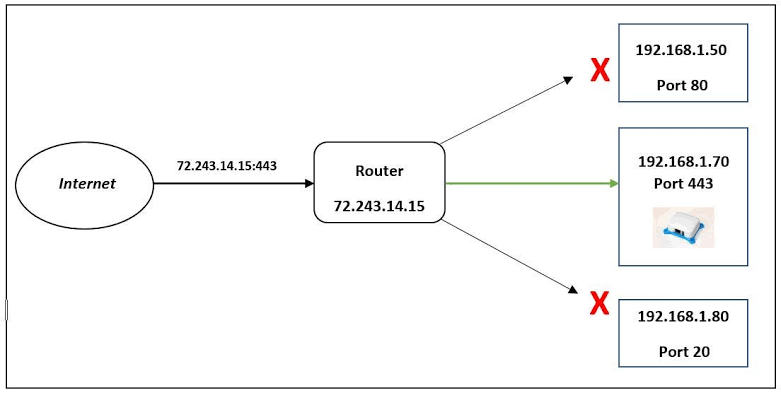
Port forwarding tells your router exactly what to do with specific types of unsolicited incoming traffic, bypassing the default drop rule.
- Standard Port Forwarding: If you are running a Minecraft server on port 25565, you must configure the router to forward any external internet requests hitting port 25565 directly to the static internal IP address of the PC running the server. Without this rule, nobody outside your house can join.
- Port Triggering: This is a more dynamic, safer alternative for applications that don’t need permanent open ports. Instead of leaving a port open 24/7, Port Triggering watches for outgoing traffic on a specific port. When you launch a game and it sends data out, the router automatically opens the corresponding incoming port, and closes it again as soon as you close the game.
- The Double NAT Problem: If you have an ISP modem that also acts as a router, and you plug your own personal Wi-Fi router into it, you create two separate NAT firewalls layered on top of each other. Port forwarding becomes nearly impossible because traffic gets trapped between the two routers. To fix this, the ISP modem must be set to “Bridge Mode,” turning off its routing capabilities and letting your personal router handle all NAT duties.
3. Security Risks and the DMZ
Opening ports exposes a device on your local private network directly to the open, hostile internet. It must be done with extreme caution.
- Targeted Exposure: Only open the exact specific ports required for a service. Never forward common administrative ports (like Port 22 for SSH or Port 3389 for Windows Remote Desktop) directly to the outside world. If you need remote access, set up a secure VPN server (like WireGuard or OpenVPN) on your router instead.
- UPnP (Universal Plug and Play): This feature allows internal devices (like Xboxes and smart TVs) to automatically open their own port forwarding rules on the router. While incredibly convenient for gamers, it is a massive security vulnerability. If malware infects a PC, it can use UPnP to silently open ports and invite outside attackers into your network. Security experts always recommend disabling UPnP and doing manual port forwarding.
- The DMZ (Demilitarized Zone): A router’s DMZ setting allows you to expose one specific internal IP completely to the internet, bypassing the firewall entirely. This is heavily used to fix console gaming issues, but placing a Windows PC or server in the DMZ is incredibly dangerous. It will be scanned and likely attacked by automated bots within minutes.
Mesh Networks & Extenders: Architecting Seamless Wi-Fi Coverage
When a single, centrally located router cannot cover an entire home, you have to extend the wireless signal. However, physics is a cruel mistress, and the hardware methodology you choose dictates whether your network becomes flawlessly fast or a frustrating, disconnected mess.
1. The Physics of Dead Zones and Interference
Wi-Fi signals are simply radio waves, and they degrade rapidly as they travel through physical space, especially in modern construction.
- Physical Barriers: Drywall and wood cause minimal signal loss. However, brick, concrete, cinderblocks, and foil-backed insulation act as massive shields, heavily absorbing Wi-Fi signals. Floor heating systems and large mirrors can reflect signals entirely, creating bizarre dead zones in otherwise open spaces.
- The 5GHz Limitation: While the 5GHz frequency band offers incredible speeds, its high-frequency wave structure makes it notoriously bad at penetrating walls. A 5GHz signal will often drop completely after passing through just two standard interior walls, requiring a well-planned hardware distribution to maintain high-speed coverage.
2. The Severe Limitations of Traditional Range Extenders
Traditional Wi-Fi range extenders (or repeaters) are a cheap, $30 fix sold in electronics stores, but they come with heavy architectural compromises that ruin network performance.
- The Half-Speed Penalty: Most standard extenders only have a single radio antenna. This means they must use the exact same radio channel to talk to the main router as they use to talk to your phone. Because Wi-Fi is half-duplex (can only listen or talk at one time), the extender must receive a packet, pause, and then re-transmit it. This effectively cuts your bandwidth capacity directly in half the moment you connect to it.
- Client Stickiness: Extenders do not communicate intelligently with the main router. They often broadcast a separate network name (e.g.,
HomeNetwork_EXT). As you walk through the house, your smartphone will stubbornly cling to the main router’s fading, 1-bar signal until it completely drops the connection, refusing to switch to the full-bar extender right next to you.
3. The Mesh Network Revolution
Mesh systems (like Eero, Netgear Orbi, or Ubiquiti UniFi) represent a total paradigm shift. They replace your single router with multiple intelligent “nodes” placed around the house, functioning as a single, unified hive mind.
- Tri-Band and Dedicated Backhaul: High-end mesh systems utilize three separate radio bands (one 2.4GHz and two 5GHz bands, or a 6GHz band in Wi-Fi 6E). They dedicate one entire high-speed band purely for “backhaul”—the hidden communication between the nodes themselves. This means they pass your data back to the modem at maximum speed without ever penalizing the bandwidth of your connected devices.
- Seamless Roaming Protocols (802.11k/v/r): Mesh networks project a single, unified network name (SSID) across the entire property. They support advanced roaming protocols that actively monitor client signal strength. As you walk from the kitchen to the bedroom, the mesh system actively commands your phone to disconnect from Node A and instantly attach to Node B. The handoff takes milliseconds, meaning you can walk around on a VoIP call or video chat without a single stutter.
- The Ultimate Setup: Wired Backhaul: If your home is pre-wired with Ethernet, you can plug the mesh nodes directly into the wall. This creates a “Wired Backhaul,” removing the need for the nodes to communicate wirelessly with each other. This is the holy grail of home networking, as it provides 100% stable communication to the modem and frees up 100% of the wireless radio spectrum exclusively for your phones, laptops, and smart home devices.