Physical Address
304 North Cardinal St.
Dorchester Center, MA 02124
Physical Address
304 North Cardinal St.
Dorchester Center, MA 02124

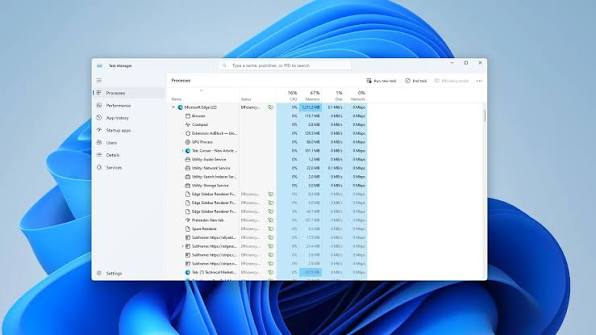
Every computer user eventually encounters the dreaded moment: an application freezes completely, refusing to close, ignoring mouse clicks, and locking up your screen. When a program stops responding, panicking or hard-rebooting the computer is unnecessary. Instead, modern operating systems provide dedicated diagnostic and control utilities designed to terminate stuck software instantly: Task Manager on Windows and Activity Monitor on macOS.
The Windows Task Manager is a powerful command center that provides real-time data about your computer’s performance and running processes.
Ctrl + Shift + Esc simultaneously. Alternatively, pressing Ctrl + Alt + Delete and selecting “Task Manager” works as a reliable backup.On Apple computers, the equivalent diagnostic tool is called Activity Monitor.
Command + Spacebar to open Spotlight search, type “Activity Monitor,” and hit Enter.Most application freezes are temporary glitches caused by heavy momentary workloads, waiting on a slow internet connection, or running out of available RAM. However, if a specific program consistently freezes every time you open it, it may be corrupted, outdated, or conflicting with another system component, signaling that you should reinstall or update the software.